By default, the color of the Report Background is determined by the currently selected report Theme. The background color can be changed using the Color Picker in the Formatting panel, Report ribbon, or Design ribbon.
Changing the Background Color
The background color can be changed from the Formatting panel, the Report ribbon, or the Design ribbon.
Formatting Panel
For each non-grid visual, there is a Background Color dropdown list on the Fill tab of the Formatting panel.
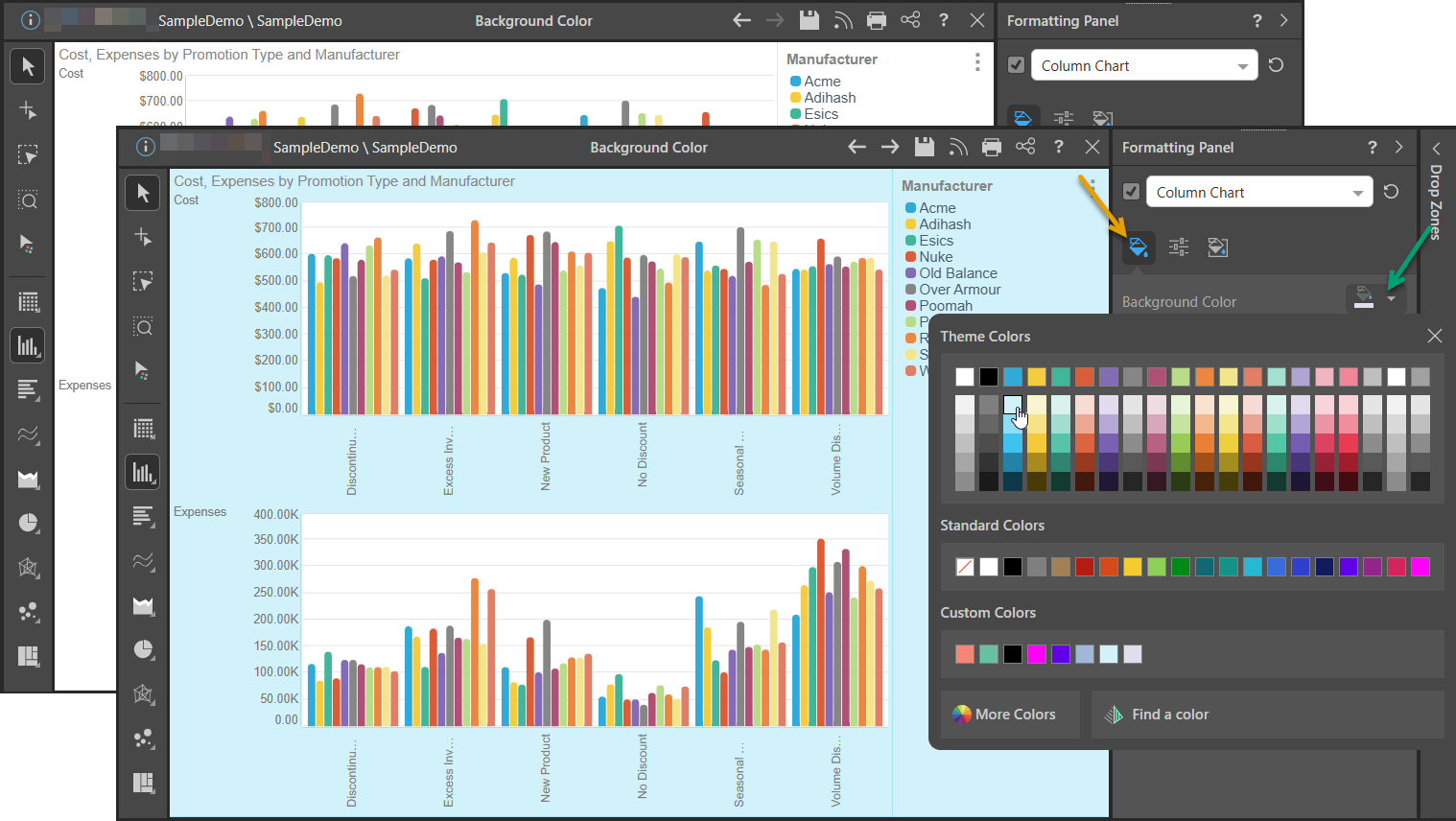
For example, to change the background color for a Column Chart from its default theme color (white) to blue:
- Open the Formatting panel and select the Fill tab (orange arrow below).
- Open the Color Picker from the Background Color dropdown list (green arrow) and select Blue for your background.
Tip: There is also a Background Color field on the Formatting panel for Grids, but it changes the chart background (that is, the background of the grid), rather than the background of the whole report. To change the report background for grids, use one of the following options from the Report or Design ribbons.
Report Ribbon
To change the background color from the Report ribbon, open the Color Picker from the Canvas Color field (green arrow below) and choose your required color:

Design Ribbon
The Report Background color can also be changed from the Design ribbon (green arrow below):

Using the Color Picker
Once the Color Picker is open (as described above), you can use it to select a color for your canvas or report background color:
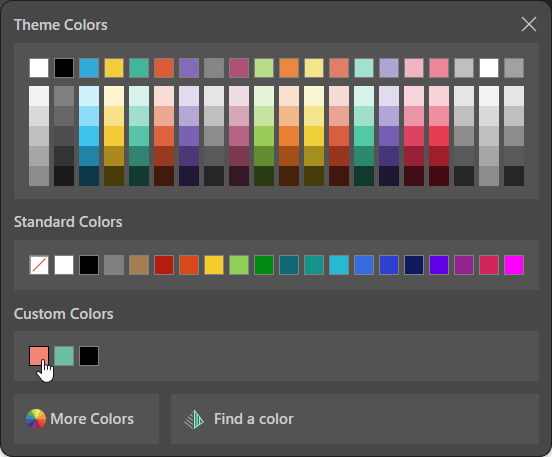
The Color Picker panel is divided into parts:
- Theme Colors: These colors have been assigned from the report's current theme.
- Standard Colors: These colors are available for all visuals, regardless of the report theme.
- Custom Colors: These colors have been used already and can be used again.
- More Colors: This tool allows you to choose a custom Hex or RGB color.
- Find a Color: This tool allows you to use artificial intelligence to generate a color in response to your prompt.
- Click here for more information about the Color Picker